Showing posts with label Facebook Tricks and tips. Show all posts

Thursday, October 17, 2013

How to create a Facebook cover photo on your Android device

Finding the perfect cover photo for your Facebook Timeline while on the go seems near impossible. Using an Android app, you can upload and create your Facebook cover photo directly from your Android device.
Shortly after posting about how to create a Facebook cover photo on the iPhone, I found an Android app that allows you to create and upload a cover photo straight from an Android device.
The app, Facebook Timeline Covers: D33P, is free. Once you upload your cover photo creation, however, it will be stamped with a watermark promoting the app. Let's take a look at how the app works.
(Credit: Screenshot by Jason Cipriani)
The app has a straightforward approach; after launching and allowing the app to access your Facebook account, you cap tap on either the blank cover photo or profile picture to choose which section you would like to edit.
(Credit: Screenshot by Jason Cipriani )
You can browse some user-generated cover photos, or take a photo from your Facebook News Feed, a photo from either your or your friends' Facebook photos, or a photo from your Android device.
(Credit: Screenshot by Jason Cipriani )
Once you've chosen your cover photo and/or a profile picture, you're allowed to preview what it will look like as a finished product on Facebook (minus the watermark, which is conveniently not shown until after you upload your cover photo).
(Credit: Screenshot by Jason Cipriani )
You will need to log in to your Facebook account, view the album(s) the app has created for you, and set the newly uploaded photos as either your cover or profile picture, respectively.
A word to the wise: if you aren't going to change your profile picture, just leave the profile pic section blank in the app. If you don't, you will have a new album created with your profile picture being duplicated each time you upload a cover.

Wednesday, October 16, 2013

How To Use Instagram: 25 +1 Steps to Get 100 Likes In Just Minutes

Picture this! You are the only one not getting likes on your Instagram Photos. Now it is time to change that and learn how to use Instagram! You can easily get 100 Likes in Just Minutes by following the 25 +1 Steps Below!
Instagram statistics say the app has 90 million monthly users. Instagram also claims those 90 million people post 40 million photos per day and tap 8,500 likes per second. With statistics like this there is no reason not to be getting 100 Likes in a few minutes.
How To Use Instagram To Get 100 Likes In A Few Minutes:
1) Click on the Instagram App. Take an Instagram Photo by clicking the camera icon button. The button is located in the center of the bottom navigation menu. If you want to use a picture you have already taken click on the icon to the right to select a picture from Dropbox or the Gallery.
2) Crop the Photo to fit the Instagram size requirements. Select the double arrow next screen button in the upper right.
3) Select the filter you want to use. Don’t over think this. Normal filter is by far the most popular.
4) Hit the home tab on your phone. Go to the Google Play Store or Apple Store. Search and install the “TagsForLikes” App.
5) Open “TagsForLikes” App.
6) Select “Popular” from the Home Menu in the “TagsForLikes” App.
7) Select “Most Popular” from the SubMenu.
8) Select “Copy Tags”.
9) Hit the Home tab on your phone again. Return back to the Instagram App and open it.
10) Press gently on the screen where it says “Add a caption” to the left of your photo.
11) Select “paste” to paste the Tags into that section.
12) Name the location where the picture was taken. This helps establish credibility and originality.
13) Click the green arrow at the upper right to post the photo.
14) WATCH the photo accumulate MANY likes!
15) Hit the Home tab on your phone again. Return back to the “TagsForLikes” App.
16) Select ”Popular” from the Home Menu in the “TagsForLikes” App.
17) Now Select “2nd Popular” from the SubMenu.
18) Select “Copy Tags”.
19) Hit the Home tab on your phone again. Return back to the Instagram App and open it.
20) Return back to the picture you took. Hit the Comments button. It looks like the word balloon to the right of the heart.
21) Click on the Pencil “Edit” button in the upper right hand corner.
22) Delete the old tags by clicking the red “X” to the left and tapping the red “delete” box.
23) Press gently in the empty box at the bottom of the phone screen.
24) Select “paste” and paste the New Tags into that section.
25) Select “Send”.
26) Watch while the photo accumulates even MORE Likes! Refresh to see the Likes as they come in.
REPEAT this process AGAIN AND AGAIN for even MORE Likes!
What other tips do you have on How To Use Instagram? What suggestions do you have for getting the most likes for your Instagram Photos? Leave your comments below! We want to hear from you.

Friday, June 15, 2012

How To Scure Hacking Facebook And Twitter On Shared Computers.

    
Have You Ever accessed Facebook or Twitter in cyber cafe's or your office or your school? If Yes then there are chances that your Facebook or twitter account was hacked then and there. By the teacher, your boss or the cafe owner. 


I've discussed just this trick here. You don't need to be a programming expert from that, anyone with basic knowledge of computers can do it. 
                                                                                                           
First there's a thing maybe you have noticed already that whenever you open Facebook or twitter the web address is like "http://www.facebook.com"  and whenever you have browsed GMAIL note the difference. its like "https://www.gmail.com". So as you have seen Gmail uses a secure server to conncet to the net, while Facebook or twitter do not. 


So what you need to do is:
Download the below plugin from the below link
Download Plugin


Once Installed A sidebar would open on your Firefox browser. So that whenever people login into there account, you can easily login into there account too. The thing is that the computers must be connected through data-cable, Wifi like in cyber cafe's.
Enjoy this little hacking. And please pass comments.

Sunday, May 6, 2012

TAKE ADVANTAGE OF FREE SMS FEATURE VIA FACEBOOK

Facebook fever have mushroomed in such a way in the association development. Communication between persons through facebook more interest than on other social networking sites.

Facebook fever would be even better if added with a feature such as "free SMS via Facebook." This feature will be very useful if we will chat with an offline friend. So the message will still be up to him.

Free SMS is provided by dodotext, a free SMS provider via Facebook, Friendster and dodotext mobile applications. Dodo text is an online service owned by Tactica Labs Pte Ltd Singapora origin serving GSM SMS to the number of all countries around the world for free.

To use SMS dodotext via facebook:

1. Visit Dodotext
2. Click the Facebook link in the Add Our Facebook Application
3. Log into your Facebook account
4. Press the Allow button to allow entry into the facebook application
5. Then add the application to the profile.

To start an SMS, SMS settings first destination country, destination phone number, and type your message (max 100 characters), then press the Send SMS.

Additional features for free SMS via Friendster is not much different with facebook. Whereas for use dodotext mobile SMS applications, we need to register first and will get 5 free SMS every day. Let's try it now ..!


CLICK ON BELOW BUTTON PLZ 

SOME FACEBOOK CHAT APPLICATIONS IN BLACKBERRY FOR FREE

Chat with friends on Facebook is very exciting. However, the constraints have to sit long at a computer and a limited time becomes one of the obstacles met in the pleasure with friends in cyberspace.

With the presence of the Blackberry smartphone technology, this constraint disappears. Moreover, there are some free applications that can be accessed via mobile phones blackberry. In fact, most applications are able to integrate with Blackberry messenger (BBM).

Here are some of Facebook Chat applications on Blackberry Smartphones

1. mChat 1.2.3: this application is one hundred percent free. Although free, we would not be disturbed by the ads that often appear in several free applications. Not only that, we can also update the status of this application. The file capacity is only 705 KB, so, this application can installed on blackberry mobile phone has limited memory. Download at www.blackberry.com/appworld or directly on the site www.mchat.com

2. Facebook Chat For Free: The application is very flexible in use on the blackberry because all facilities are the same as the Blackberry Messenger. In fact, we do not need to move a window (window) chat while chatting with friends on Facebook as well as fuel either, because these applications are integrated with the fuel. Download at www.blackberry.com/appworld or at: www.smarter-apps.com

3. Free Chat For Free With BBM (BBM CFF): This application can say 100 percent integrated with the fuel. Not only the looks alone, but other facilities such as autotext (OS.5) or Word Substitution (0S.6), avatar icons can also be applied here. Amazingly, this application can differentiate our chat friends who are using Blackberry while chatting or not. Download www.blackberry.com/appworld or in CFF Fuel: www.msonar.com

4. FriendChat: This application will run fine on Blackberry OS 6.0. Besides having the same facility with a variety of other facebook chat application, this application can be sent to the fuel facebook chat screen. In addition. FrienChat support multi chat system to chat with some friends on Facebook simultaneously at once. Download at www.blackberry.com/appworld or at: www.jaredcompany.com

In addition to the above four applications, facebook chat is still a lot of other applications that can be fused with a Blackberry. May be useful!


CLICK ON SUBSCRIBE BUTTON BLOW

Monday, April 23, 2012

Free Facebook Access From any Mobile In India Without Internet

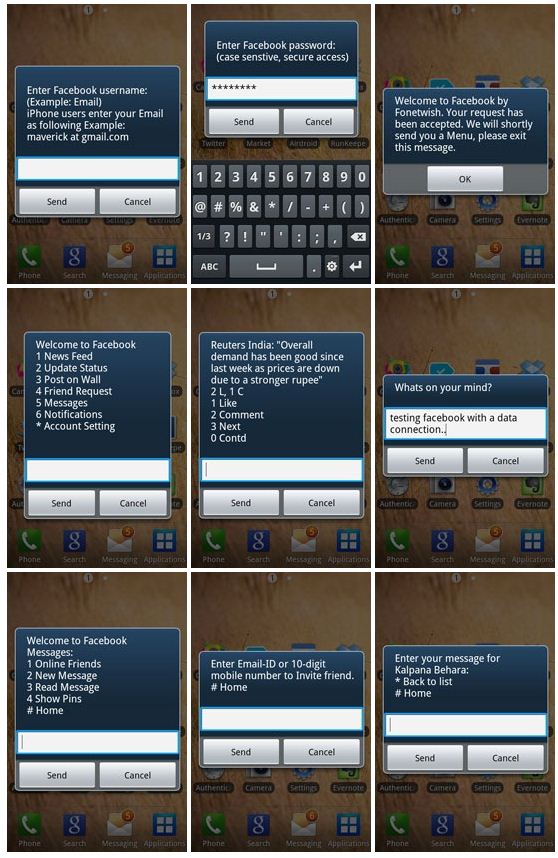
Facebook has become the largest social network on this earth and day to day many people are joining Facebook for connecting with family, friends who are far away from their home. Facebook is becoming the most popular social network for chatting with family and friends, share the knowledge, exposure of any event, talk without any talk, building subscribers for business. If we talk about the registered user by countries then India has become the second largest country in the world whose people are registered with Facebook. Now Facebook has decided to attract more users from India and Facebook India has partnered with Fonetwish by which you can access your Facebook for free without any internet connection without any form of data ( EDGE/WCDMA/HSPA(3G)). You can use your Facebook in the mobile even in Nokia 1100 or no need to have any multimedia mobile or inbuilt any apps. Fonetwish has started this free Facebook access service to Airtel, Idea, Aircel and Tata Docomo users only and may be brings it to other networks. Now here is how to access free Facebook without internet connection in India.


Browse Facebook For Free In India On Mobile Phones


  1. If you are a Airtel/Aircel/Idea or Tata Docomo user, then proceed the below steps and if you are network user then wait for some days to launch this service.
  2. Dial *325# from your mobile phone and wait for a while.
  3. Enter your username and password, now are in your Facebook account.
  4. Choose the number what you want to be, for example if you want to update your status update then choose 2 and go for write and update like the below preview. Take a complete look in the preview,

free facebook access in india
Free Facebook Access Screenshot taken from labnol.org
I personally used this service and have a good experienced without any problem and hope you would also like these feature into your mobile phones. You can also check who are online and chat them and also you could get direct dial number to chat with individual friend, if you are outside of your Facebook account, just you have to dial no. and message them. Using this unlimited service have minor charges, just you have to pay only Rs. 1.00/day and use this feature unlimited.

IF THIS TRICK IS HELPFUL FOR YOU THAN DON'T FORGET TO SUBSCRIBE US FOR MORE UPDATES !
Click On Subscribe Button......!

Unanswered/Pending/Decline Friend Requests|Unfriended Me On Facebook

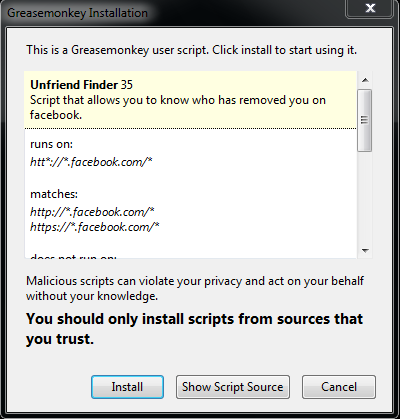
Your Facebook account popularity is totally depended upon the friends with whom you'd like to share anything and get updates with friend's status, but it hurts, when some of your friends unfriend you and Facebook do not allow you to show which friends have removed you from their friend list. You can not track which friends have removed you, which friends have deactivated their Facebook profile, who has declined your friend request and how much have you pending friend requests. Unfriend finder, a user-script which runs via Greasemonkey for Mozilla Firefox. Unfriend finder allows you to track back door activity of your friends such as who has removed you from their friend list, deactivated their profiles, decline your friend request, awaiting your friend request. So, you can track and take an action in the real time. Unfriend finder uses the Facebook notifications to alert you on these events, or you can see it directly by going to your left sidebar in Facebook's wall and look under the FAVORITES list, after click on Unfriends, you can check all notifications.


How To Check Which Friends Have Removed You in Facebook-Mozilla Firfox


  1. Make sure you are using Mozilla Firefox browser. If not you should install Firefox
  2. If you have installed Greasmonkey on your Firefox, then skip this step otherwise, Install Greasemonkey, after click on Greasemonkey you have to click on +Add to Firefox then you will see a pop up installation add on windows in which you have to click on Install Now button. Make sure to restart your browser otherwise the below step will not work. You can bookmarked this page. After installation of Greasemonkey, you will see an icon Greasemoney for firefox of Greasemonkey onto your browser near URL bar. 
  3. Now install userscript for Unfriends Finder. After clicked, you will see a pop up window like the below preview,

    Unfriend finder in Facebook for Firefox

    now finally click on Install.
  4. Restart your browser, and log into your Facebook account, you will see an additional tab Unfriends onto the top navigation bar near Account, like the below preview,

    Unanswered declined request in Facebook
    clicking on Unfriends, you will see pending requests, and if you wish to cancel all friends request, then you can do it here. You have an option to choose, what do you want to get notified by Unfriend finder, to select various options by clicking on Preferences under Settings under Unfriends tab in FAVORITES list. Take a preview,


when you don't want to use unfriend finder services in your Facebook account, then you can disable it anytime by doing unchecked on Unfreind Finder (see below preview), while you are in Facebook and refresh your Facebook.


disable Unfriend finder in Facebook

Unfriend/Decline/Unanswered You in Facebook - Google Chrome

  1. Make sure you are using the latest version of Google chrome, If not, you should install Google Chrome.
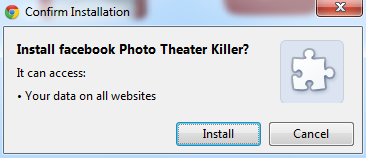
  2. Now install the userscript for Unfriend Finder for Chrome. After clicked, you will see a pop up window like the below preview,

    which have removed you from friend lists

    now finally click on Install
  3. Log into your Facebook account and go back to the 4th step above and read for more information.

    when you don't want to show your photo in the old way on Facebook then simply look at the browser toolbar and go to
    Settings -->Tools -->Extensions and unchecked Enable under Unfriend Finder.

IF THIS TRICK IS HELPFUL FOR YOU THAN
PLEASE DON'T FORGET TO CLICK ON SUBSCRIBE BUTTON...!

    Saturday, April 14, 2012

    Rename/Change/Edit Facebook Page Name With More Than 100 Likes

    After a long time finally, we have renamed our Facebook Page, which has more than 100 likes. When I had created Facebook Page, then I named it with a long name but now it is TheHackerClub4U. Do you have a long name to your Facebook page (or just want to rename it) with more than 100 likes. If yes, then follow the easy steps mention below. Basically, Facebook doesn't allow you to change the name of a page with 100 or more likes.


    According to Facebook, you'll need to delete your Page and recreate it. The Facebook team isn't able to change Page names for you, but it is now possible. I have requested to rename our Facebook page to Facebook team, and within three days my request has processed,  and successfully we have renamed Facebook page with the help of Facebook team. So, here is how to change/rename a name of Facebook page with fewer/more than 100 likes. We have divided it into two parts,
    • Rename/Change a Facebook Page Name Fewer Than 100 Likes
    • Rename/Change a Facebook Page Name More Than 100 Likes


    How To Rename/Change a Facebook Page Name Fewer Than 100 Likes

    1. Sign into Facebook, and look at the top of the Admin Panel.
    2. Click Edit Page under Manage.
    3. In the left sidebar, click on Basic Information, and under Name change your Facebook page name and save it.

    How To Change/Rename Facebook Page Name With More Than 100 Likes

    1. Sign into Facebook.
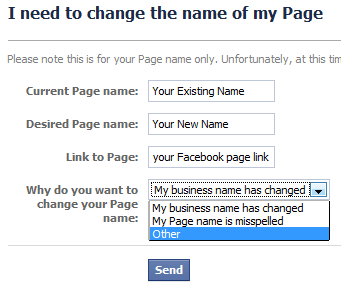
    2. Now, click here on Rename Facebook Page With More Than 100 Likes. It will be open in the new window. Take a following preview,

      Rename a Facebook Page name with more than 100 likes

      now write your existing Facebook page name in Current Page name, and the new Facebook Page name under Desired Page name, and write your Facebook Page link(as http://www.facebook.com/yourpage ) in Link to Page field. Choose the reason why do you want to change your Facebook Page name and finally, click on Send.
    3. You have successfully sent a request to change the name of Facebook Page to Facebook team. It will take some days to precessed the request and notify you via your primary email. In my case, my Facebook Page has renamed on the 3rd day. If you are also lucky, then you'll get a reply back from the Facebook team as like,
    IF THIS TRICK IS HELPFUL FOR YOU THAN
    PLEASE DON'T FORGET TO CLICK ON SUBSCRIBE BUTTON.........!

    Thursday, February 16, 2012

    How to get Facebook Messenger for Windows right now

    The official Facebook Messenger app for Windows has been leaked. Here's how to get it.
    Facebook Messenger for Windows has just leaked, giving users an unintended preview of the upcoming dedicated chat client from Facebook.
    A download link to a private version of Facebook Messenger has been posted by TechIT, as reported on The Verge.
    Here's a some screenshots of the app.
    Click to enlarge
    (Credit: Screenshot by Sukhjinder Pal Singh)
    You will have access to chat, ticker and Facebook notifications. The best way to describe it is to take the right side of the Facebook Web site (where ticker and chat are located), rip it out off the page, add notifications and put into a stand alone app.
    (Credit: Screenshot by Sukhjinder Pal Singh)
    Your chats are tabbed along the bottom, and you can chat as you would expect from any dedicated desktop chat app.
    Download and install the app at your own risk, since this is a beta, an unofficial one at that, chances are you will run into issues. You will need to be on Windows 7 in order to install the preview.
    Download Facebook Messenger for Windows.

    How to create a Facebook cover photo on your Android device

    Finding the perfect cover photo for your Facebook Timeline while on the go seems near impossible. Using an Android app, you can upload and create your Facebook cover photo directly from your Android device.
    Shortly after posting about how to create a Facebook cover photo on the iPhone, I found an Android app that allows you to create and upload a cover photo straight from an Android device.
    The app, Facebook Timeline Covers: D33P, is free. Once you upload your cover photo creation, however, it will be stamped with a watermark promoting the app. Let's take a look at how the app works.
    (Credit: Screenshot by Sukhjinder Pal Singh)
    The app has a straightforward approach; after launching and allowing the app to access your Facebook account, you cap tap on either the blank cover photo or profile picture to choose which section you would like to edit.
    (Credit: Screenshot by Sukhjinder Pal Singh)
    You can browse some user-generated cover photos, or take a photo from your Facebook News Feed, a photo from either your or your friends' Facebook photos, or a photo from your Android device.
     
    (Credit: Screenshot by Sukhjinder Pal Singh)
    Once you've chosen your cover photo and/or a profile picture, you're allowed to preview what it will look like as a finished product on Facebook (minus the watermark, which is conveniently not shown until after you upload your cover photo).

    (Credit: Screenshot by Sukhjinder Pal Singh)
    You will need to log in to your Facebook account, view the album(s) the app has created for you, and set the newly uploaded photos as either your cover or profile picture, respectively.
    A word to the wise: if you aren't going to change your profile picture, just leave the profile pic section blank in the app. If you don't, you will have a new album created with your profile picture being duplicated each time you upload a cover.

    Wednesday, February 15, 2012

    How to identify fake Facebook accounts

    Barracuda Networks releases a study that helps identify fake Facebook accounts.
    A lot of active Facebook accounts are fake, created to spread spam or for malicious purposes.
    A lot of active Facebook accounts are fake, created to spread spam or for malicious purposes.
    (Credit: Screenshot by Sukhjinder Pal Singh)
    Hello, Facebook friends, I am male, straight, often ridiculously good-looking, and this is a real message: she's not that into you.
    And by she, I mean one of those hot girls on Facebook who always seems too desperate and overzealous in trying to connect to you and everyone on your friend list.
    Apparently, of some 850 million active Facebook users, a lot are fake profiles created to spread spam and viruses. These are often categorized as spammers or attackers. Security firm Barracuda Networks released today the findings from its most recent study that helps distinguish attackers from real users. Here are the study's four key findings.
    Most fake Facebook accounts claim to belong to users who are female and bisexual.
    Most fake Facebook accounts claim to belong to users who are female and bisexual.
    (Credit: Screenshot by Sukhjinder Pal Singh)
    • Some 60 percent of fake accounts purport to be bisexuals, about 10 times more than real users.
    • Fake Facebook accounts tend to have lots of friends, about six times more than real users. On average this is about 726 friends versus 130.
    • Fake accounts tend to abuse photo tagging and on average do this about 100 times more often than real users. On average, a fake account tags about 136 times for each four photos while a real account tags just once among each four of them.
    • Finally, fake accounts almost always claim to be those of female users, with about 97 percent, as opposed to 40 percent for real users.
    In addition, fake accounts also tend not to update their status, with 40 percent of them never doing so.
    Basically if you find somebody on your friend list who's a female, who is interested in both sexes, has lots of friends, never updates her status, and excessively tags every single photo, chances are she's not a real person. You can find the complete infographic of how to distinguish between real people and fake profiles here.
    According to Paul Judge, chief research officer at Barracuda Networks, apart from being targeted for spam, friending fake accounts can lead to your account getting taken over using Facebook's trusted-friend account recovery. You can also become a victim of phishing and other malicious acts.
    Barracuda Networks says the study is the result of data collected from its Barracuda Profile Protector--a free tool that analyzes and blocks malicious activity on Facebook and Twitter--and public data collected from streams and network crawling that demonstrates how users typically operate.
    If you're interested in finding how secure your Facebook account is, give the Profile Protector a try, and don't hesitate to unfriend those people you don't actually know.

    How to limit random Facebook friend requests

    Slog through piles of Facebook friend requests from random strangers no more!
    By changing a privacy setting, you can limit the likelihood of receiving Facebook friend requests from total strangers.
    Do you get friend requests from strangers or people you hardly or don't want to know? Unless you embrace all comers on Facebook, these requests are nothing but an annoyance. One likely source of such requests is people seeing your profile in the People You May Know box that sometimes appears to the right of the News Feed.
    By default, Facebook broadcasts your profile to everyone, but you can restrict your appearances in the People You May Know box to only friends of friends. Here's how:
    (Credit: Sukhjinder Pal Singh)
    Go to your Facebook privacy settings by clicking on the downward arrow in the upper-right corner and selecting Privacy Settings. Scroll down and click the Edit Settings link next to How You Connect. For the question, Who can send you friend requests? select Friends of Friends and then click Done.
    (Credit: Sukhjinder Pal Singh)
    Now, only friends of your Facebook friends will be able to send you friend requests, and according to Facebook, your profile will appear in the People You May Know section only for people who are friends of friends.